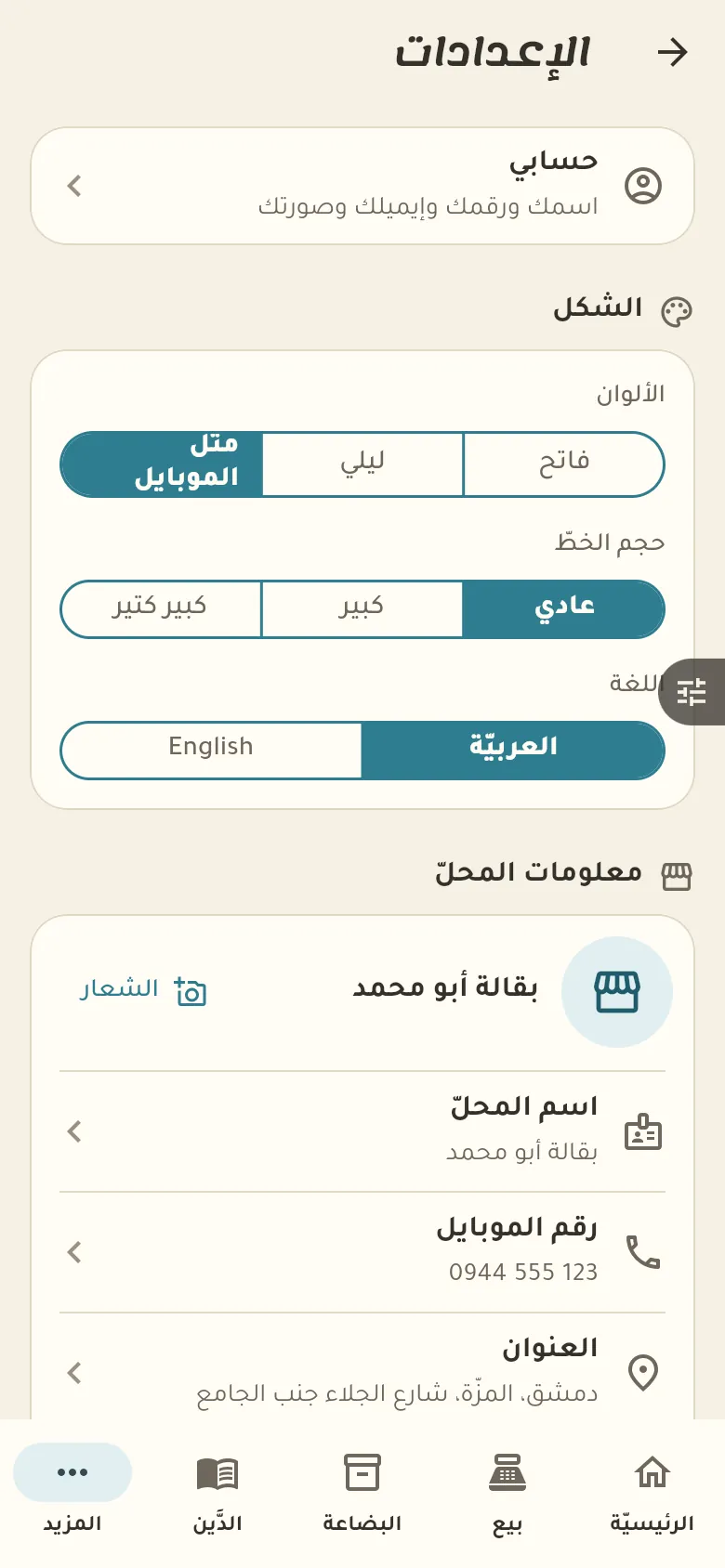
Look, team, printing, subscription, backup and your shop page: shared by every business type.
Press any step (or scroll) and the phone shows its screen.
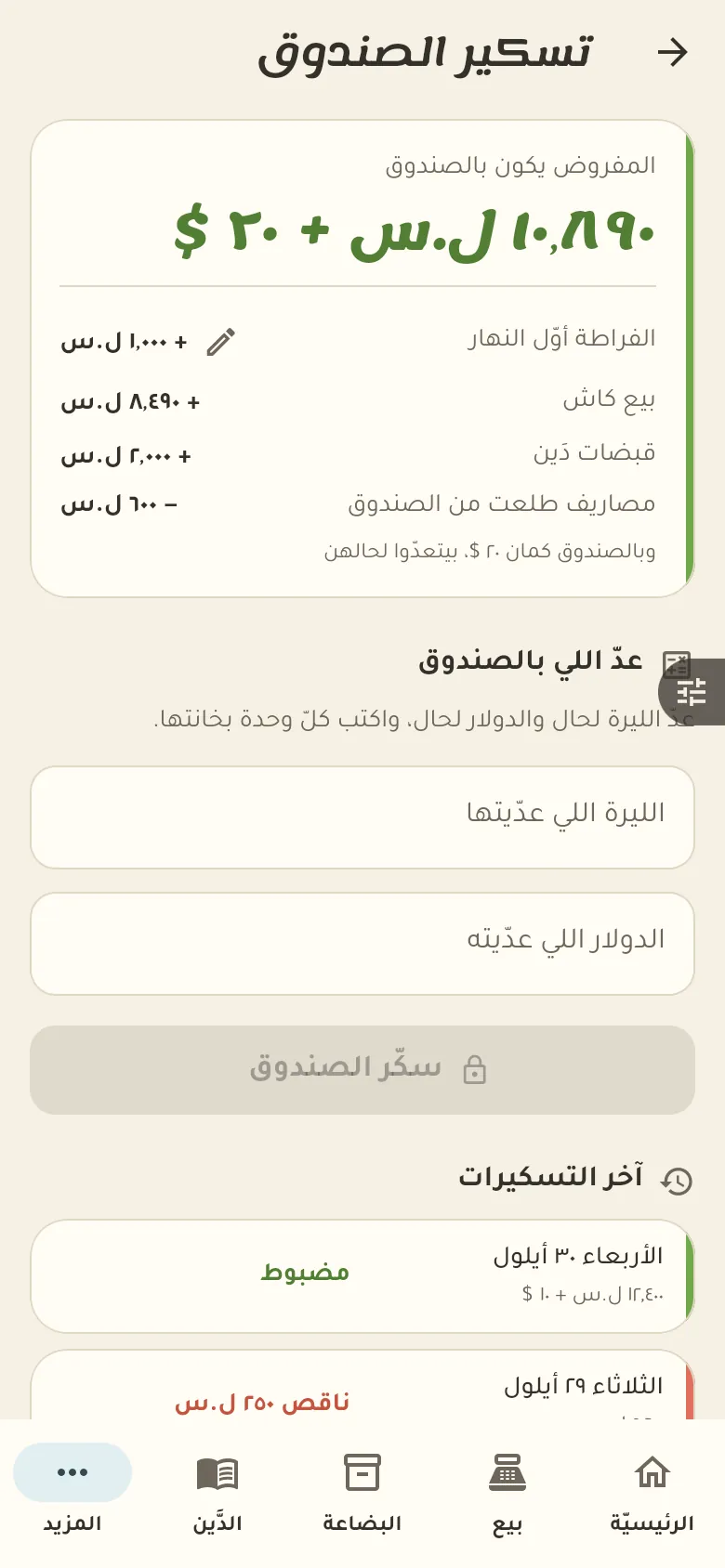
From «More → Drawer» tap «Close», count what's in the drawer and enter the amount. Rafeeq shows you the difference and then closes your day.
It's the gap between what you counted in the drawer and what it should hold given sales and expenses. A small shortage or surplus is normal because of change; if it repeats, review the day's sales.
From «More → Expenses» tap «New expense», pick its type and enter the amount. For fixed costs like rent make it recurring so it's recorded by itself every month.
From «More → Profit» you see profit after deducting the cost of goods, expenses and spoilage. This section only shows for people with the permission to see profit.
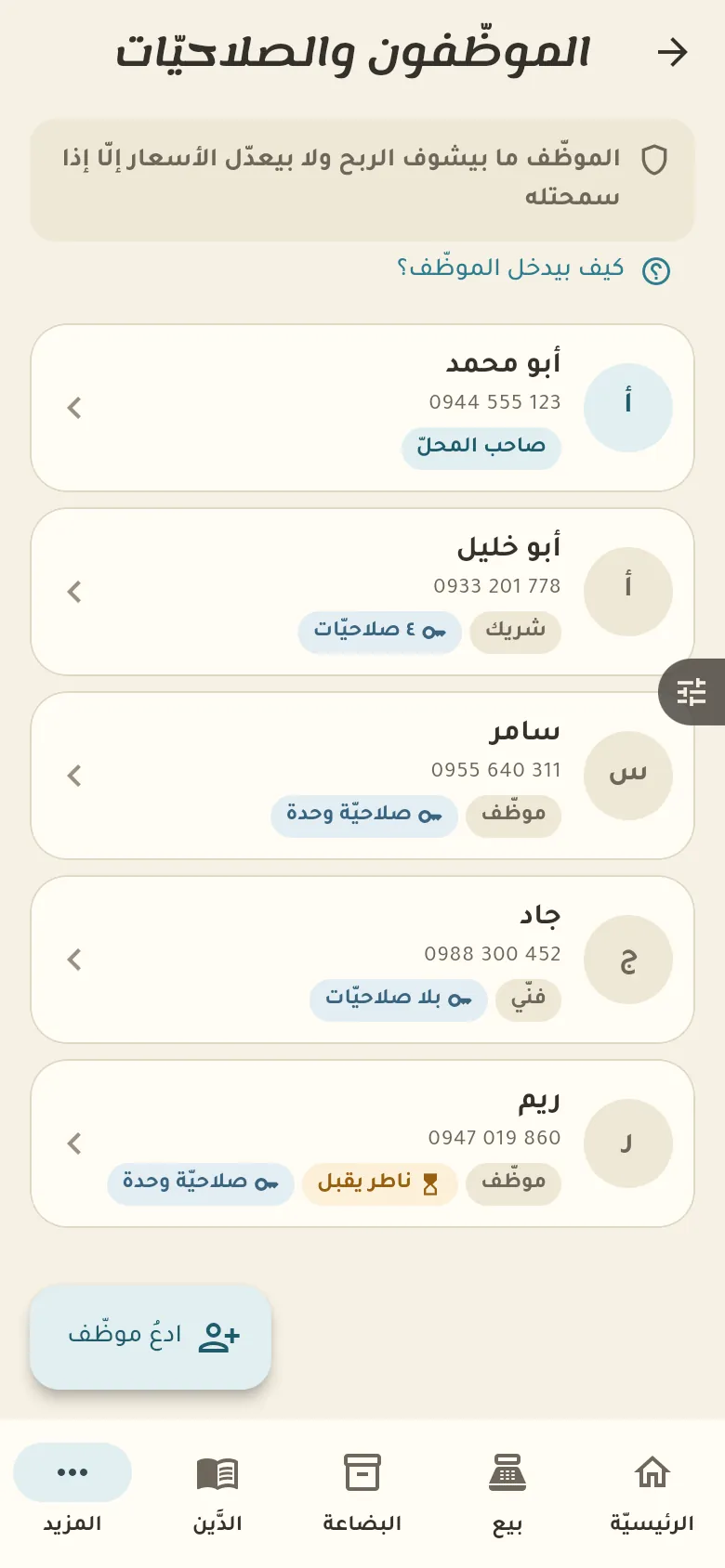
From «More → Staff» tap «Add» and enter their phone number. They get an invitation, and when they sign in with that number they join your shop.
Open the staff member and switch on the permissions you want, like seeing profit, changing prices or closing the drawer. Anyone you don't grant a permission to doesn't see what it covers at all.
Open the staff member and tap «Remove». They lose access to the shop immediately, and all their past operations stay in the log under their name.
Every sale carries the name of whoever recorded it and when. Open the invoice from the sales log and you'll see «Recorded by: …».
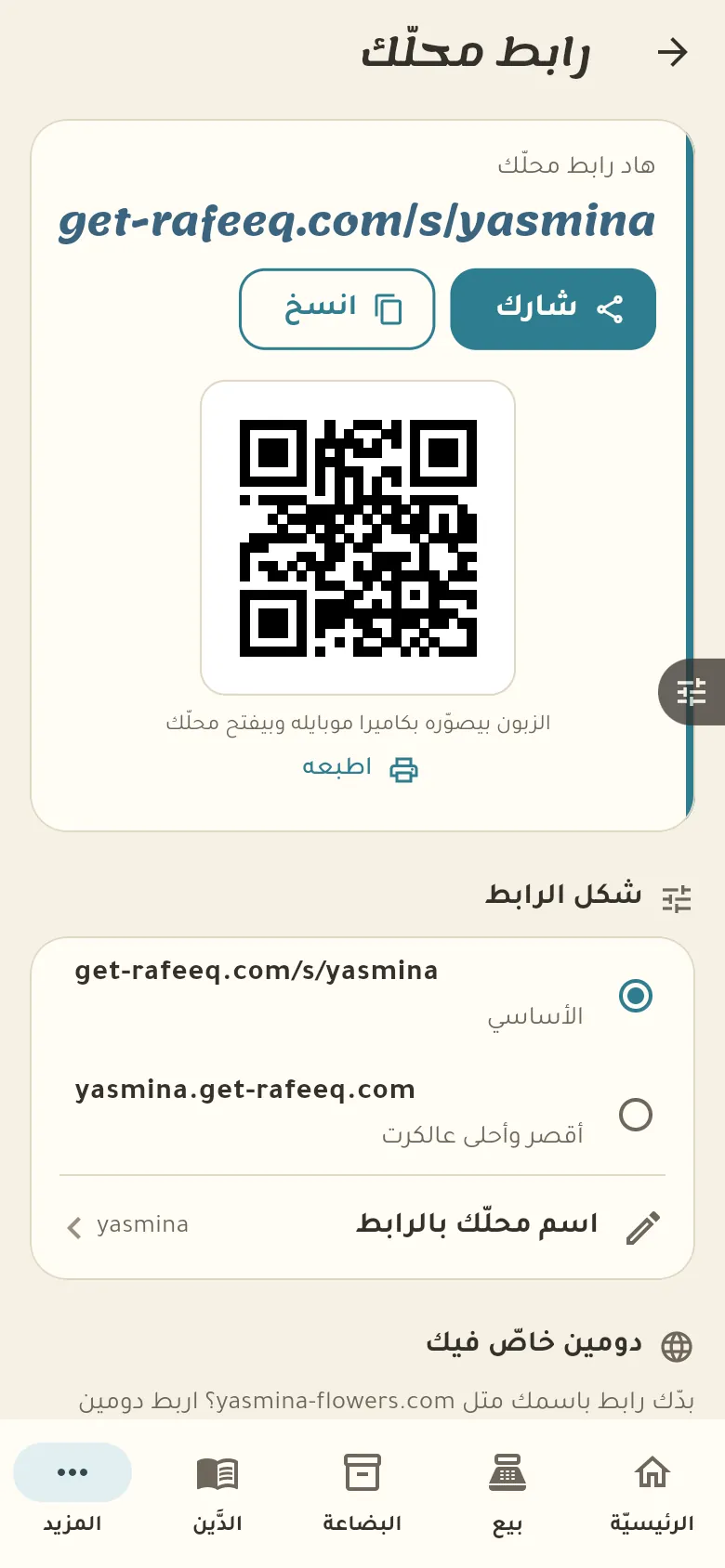
From «More → Shop page» pick a name for the link and switch the page on. It shows the items you allow to be displayed.
When a customer orders from your page you get a notification and find the order in «More → Orders». Accept or reject it, and once accepted the customer follows it from their own link.
Open the item from «Goods» and switch off «Show on the page». The item stays in your shop and only disappears from the customers' page.
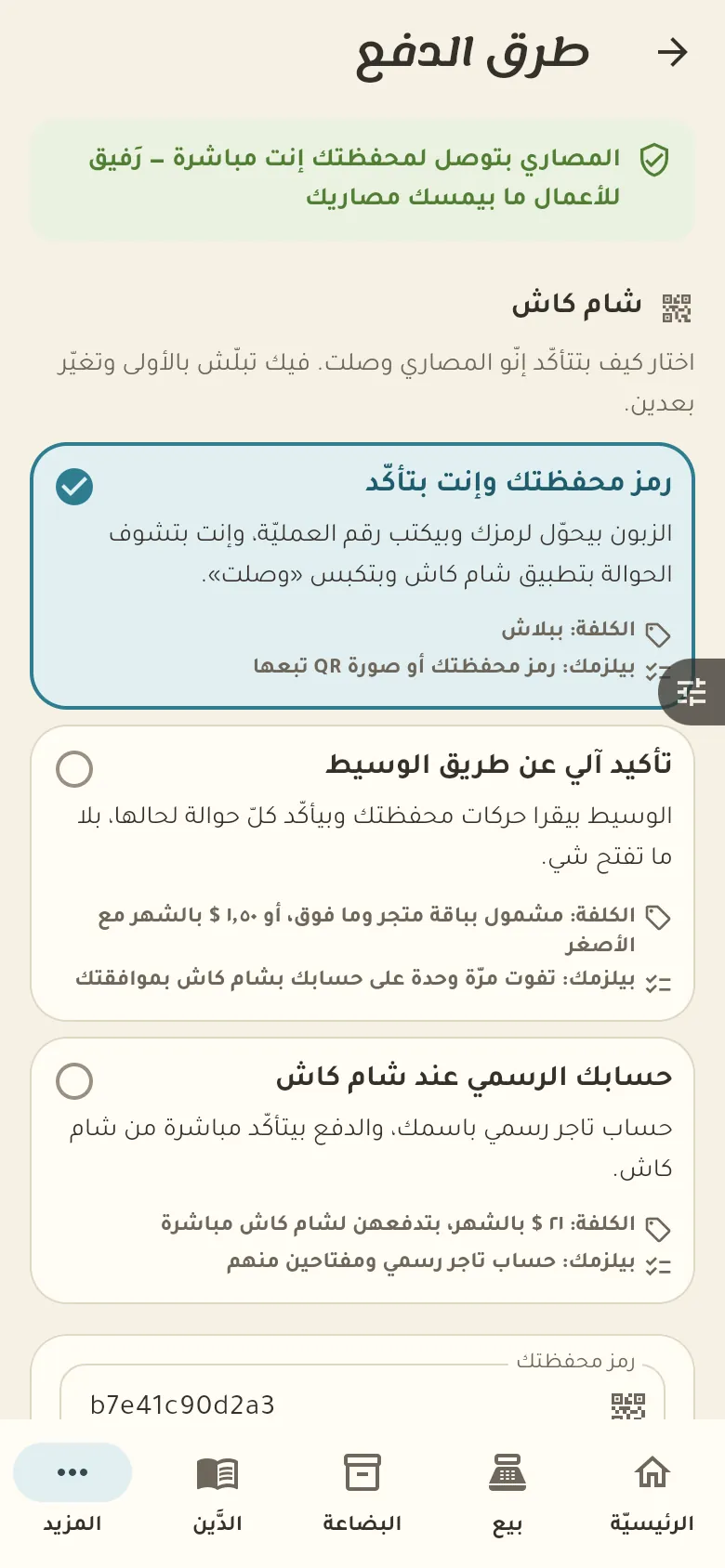
From «More → Payment methods» enter your ShamCash wallet code and switch it on. After that ShamCash appears as an option for customers on your shop page.
The customer transfers the amount to your wallet, then uploads the receipt photo and the transaction number on the order page. You review it and confirm the payment.
From «More → Payment methods» switch on «Cash on delivery». Your customers will see the option when ordering, and the order is marked paid when you receive the money.
Open your wallet and compare the amount and transaction number with what the customer sent, then tap «Confirm payment» on the order. A payment isn't counted, and the order isn't prepared, before you confirm.
Yes, everything is saved on our server. Sign in with your number on a new phone and you'll find your shop exactly as you left it.
Install the app on the other device and sign in with the same number and verification code. Both devices work together and sync automatically, within your plan's device limit.
Work as usual: sales, credit and expenses are kept on your device and sent to the server automatically when the internet returns. Only the AI and your shop page need a connection.
From «More → Settings → Devices» tap the old device and then «Remove». Its access closes immediately and no data is lost.
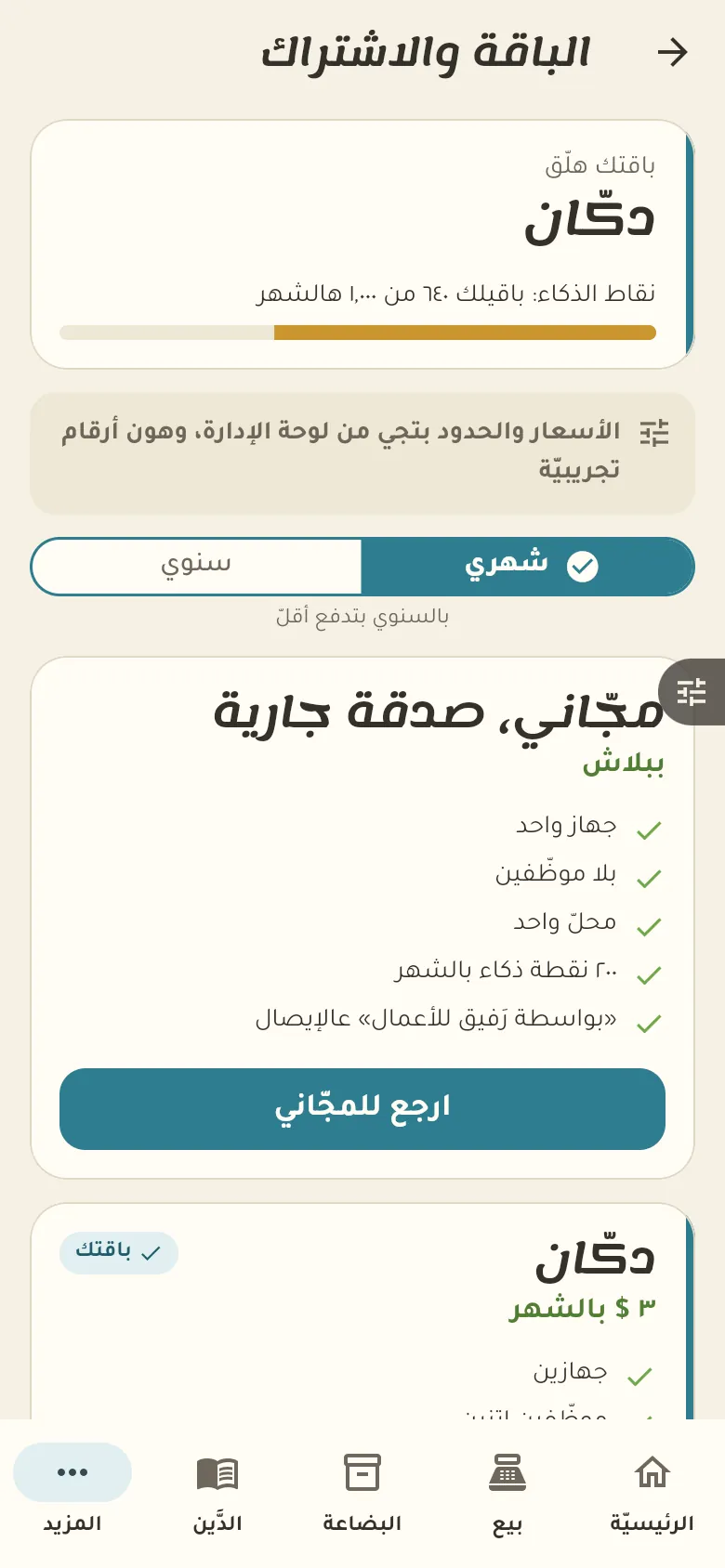
Plans differ in the number of devices, staff, branches and monthly AI points. You'll find each plan's details and price in «More → Plan».
In «More → Plan» tap «I have a code» and type it. It activates or applies the discount right away, and you'll see the new plan and how long it lasts.
Every use of the AI, like selling by voice or asking Rafeeq, uses points from your plan's monthly balance. The balance renews every month and you see what's left in «More → Plan».
In «My papers» you see the space used; tap «More space» to pick an extra size. The price is shown before you confirm and comes from the panel, not from this text.
