Learn Blacksmith A quote calculator from measurements and bar spacing, and your contractors' accounts.
Last updated: 7 November 2026 · 13 chapters · 13 steps · The Blacksmith page →
Pick up where you left off: Resume ▶
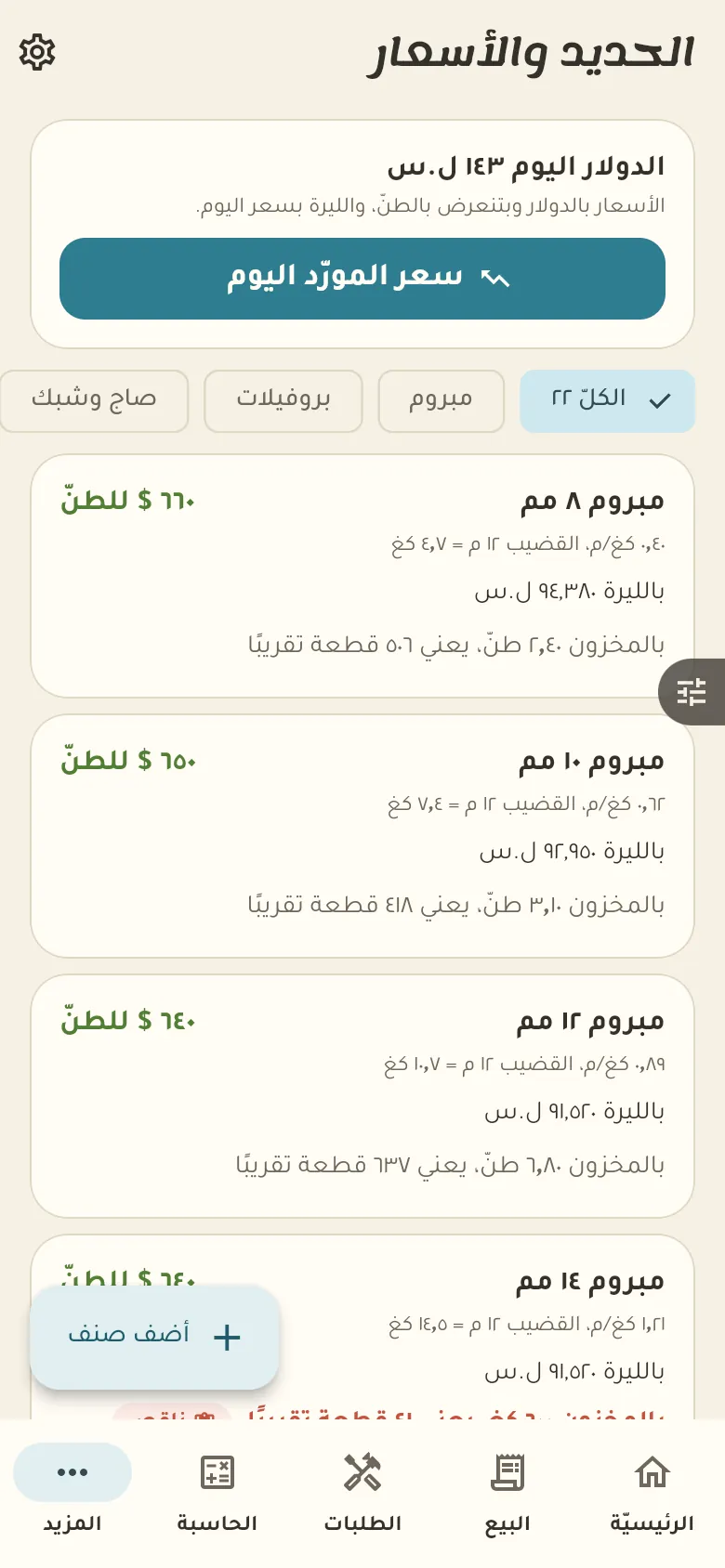
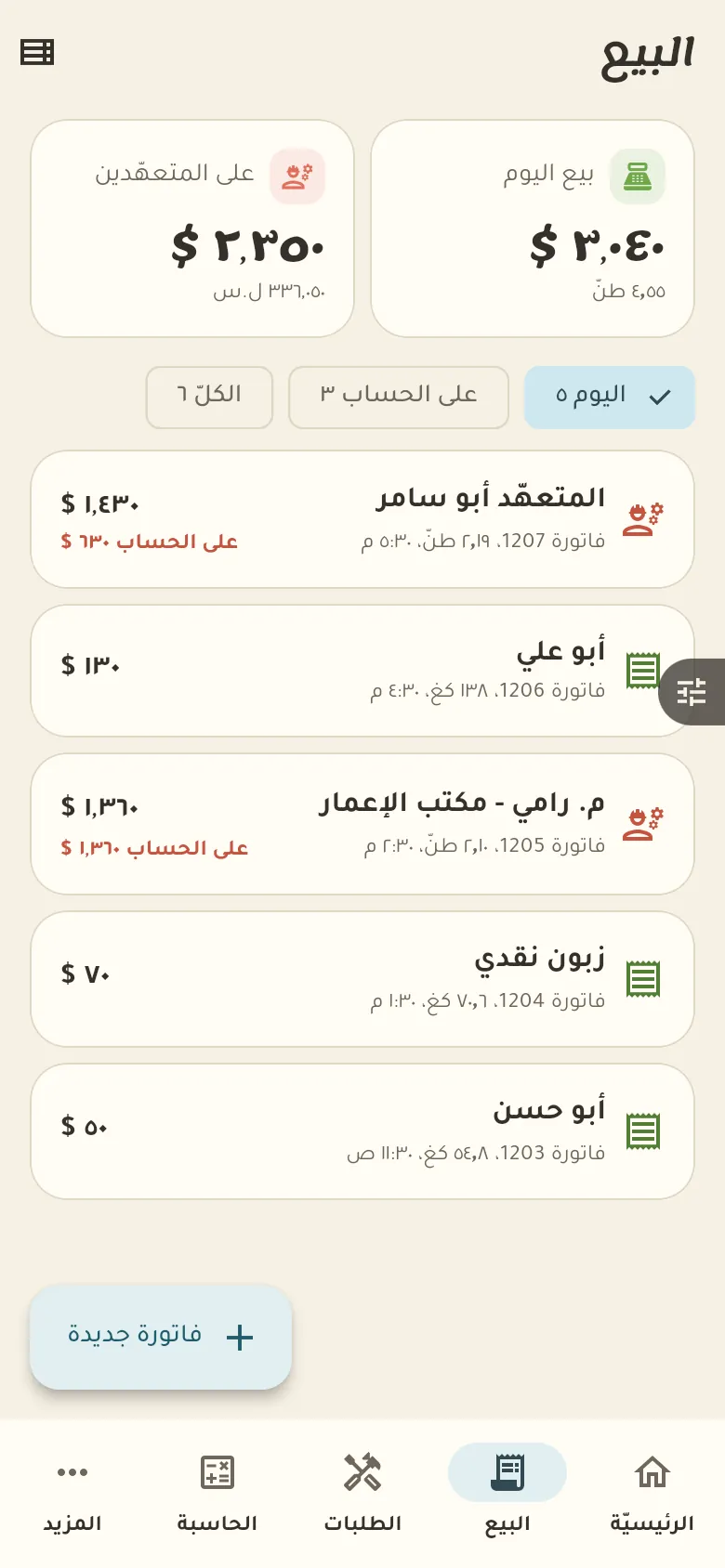
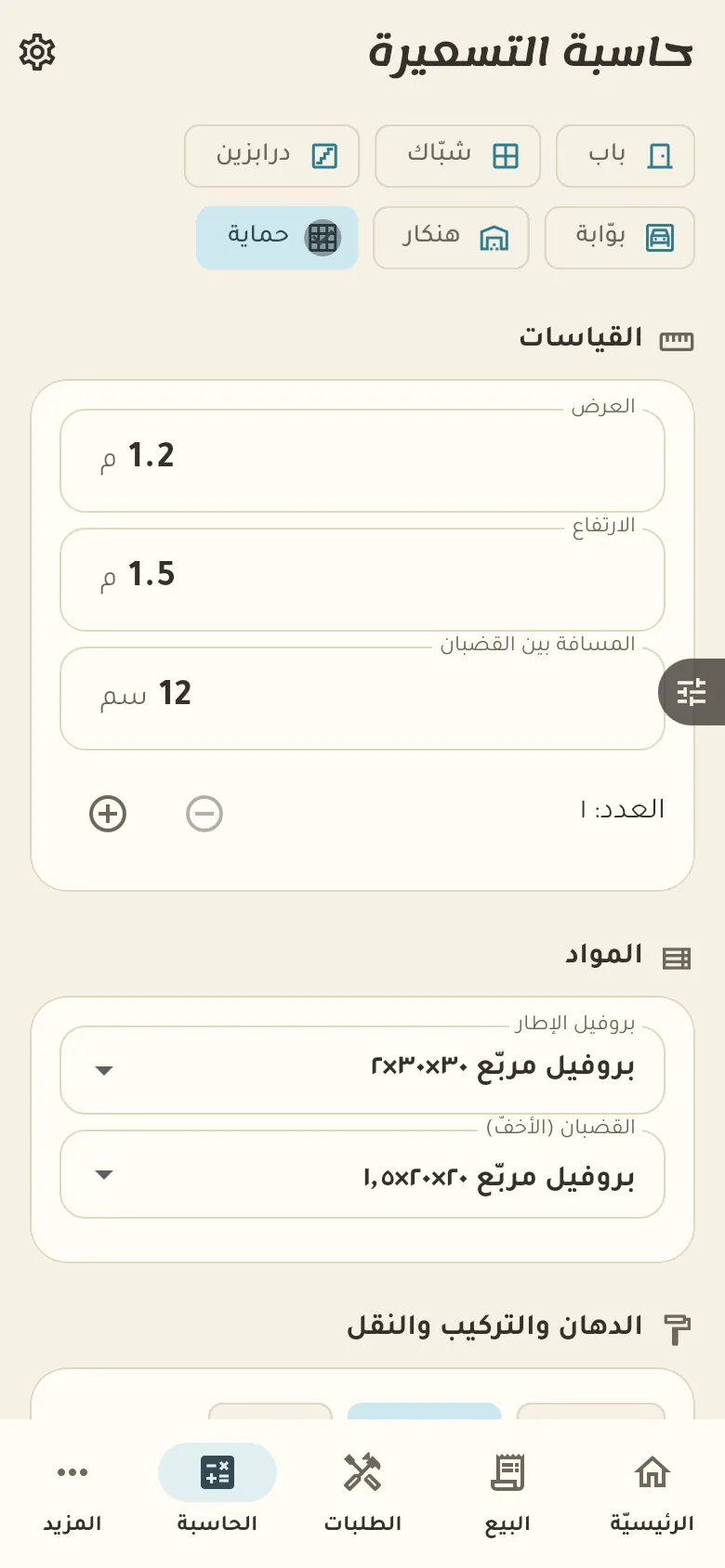
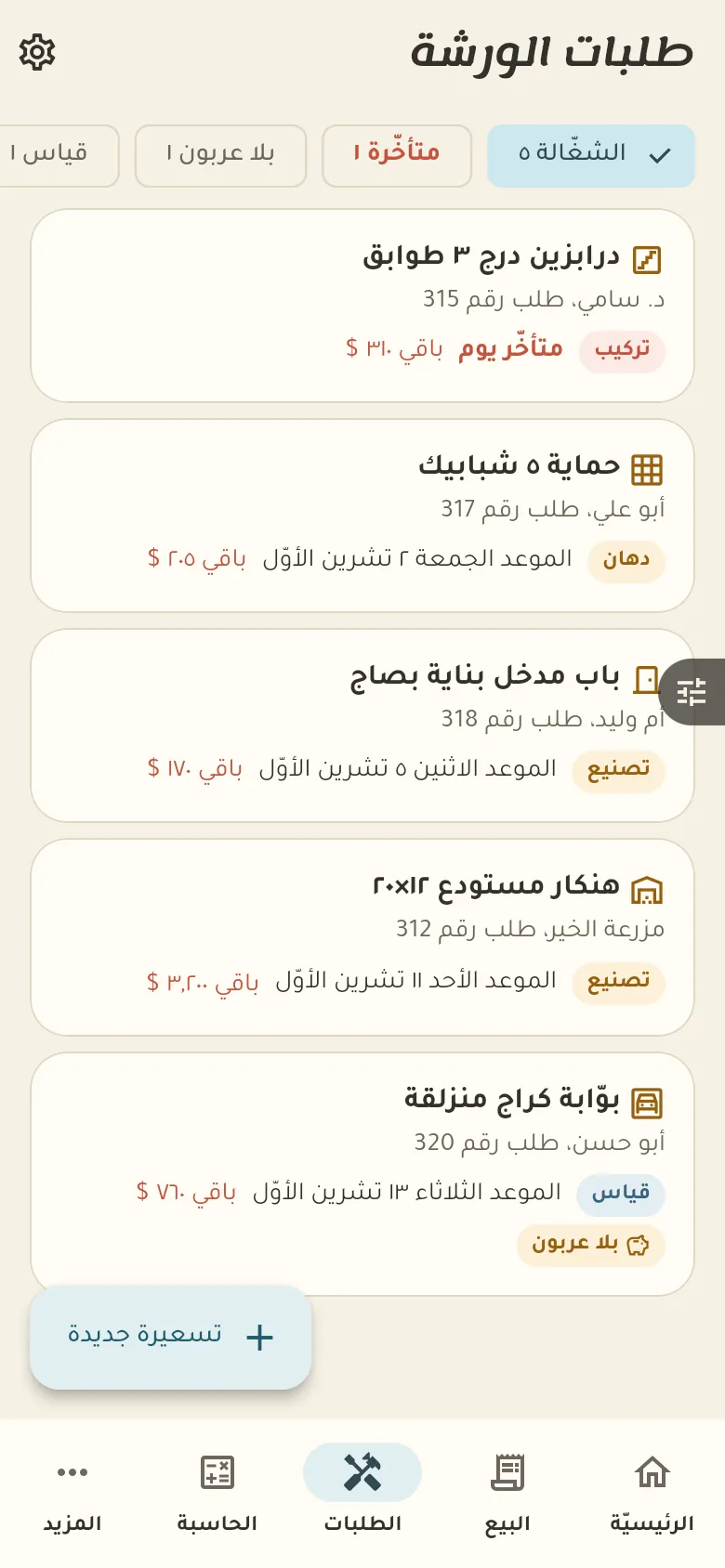
← Previous ▶ Play Next → Speed ×1 0:00 Creating your account and the smithy 1:58 Home: shop and workshop 3:22 Iron and prices 4:53 Adding an iron item 6:34 Today's supplier price 7:56 Selling by weight 9:50 Contractors and credit 11:07 Calculator: window grilles 12:24 From quote to order 13:43 Orders and stages 15:07 Payments, costs and profit 16:47 Smith settings: prices and materials 18:30 Smith settings: workshop and customer
Settings, team, printing, subscription and everything in More are shared by every business type and have one detailed video →
Step by step Press any step (or scroll) and the phone shows its screen.
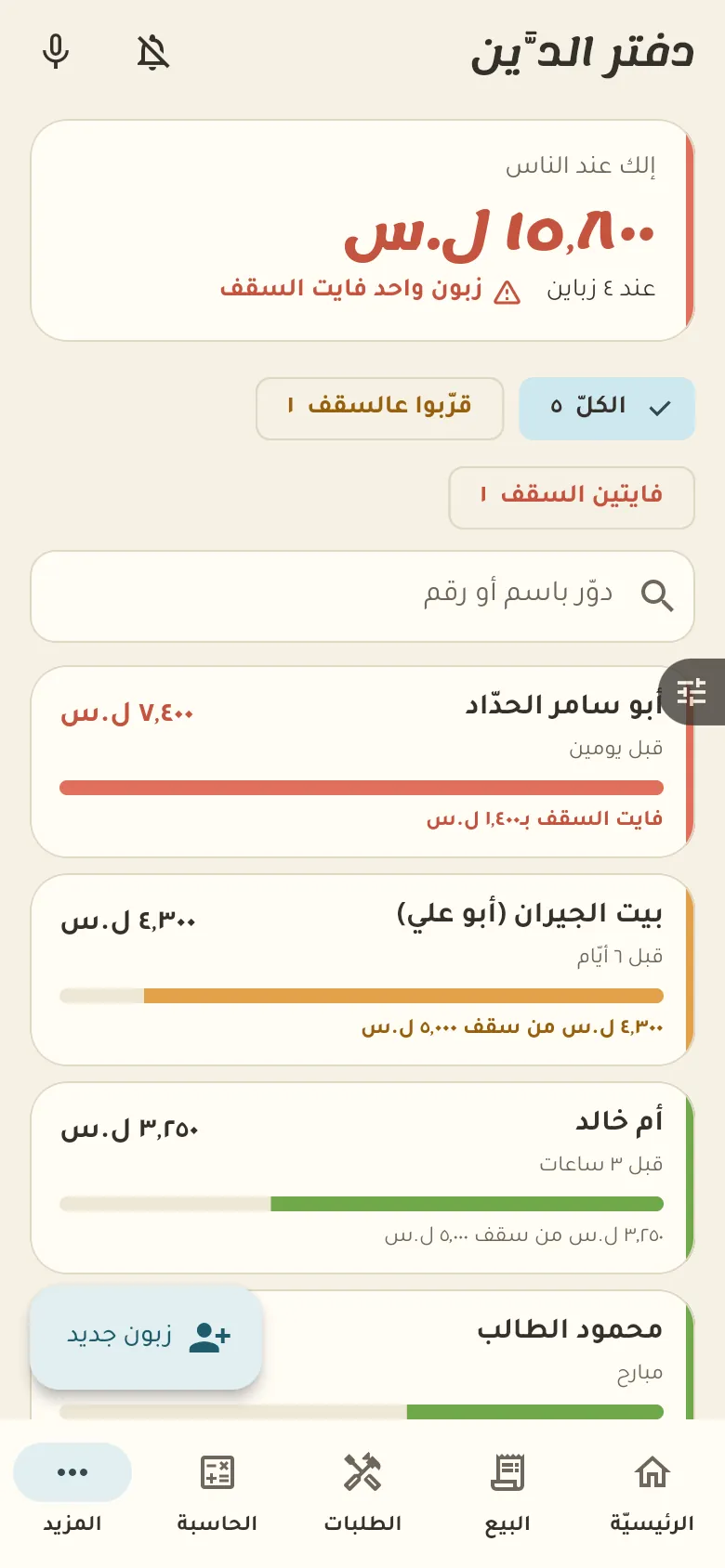
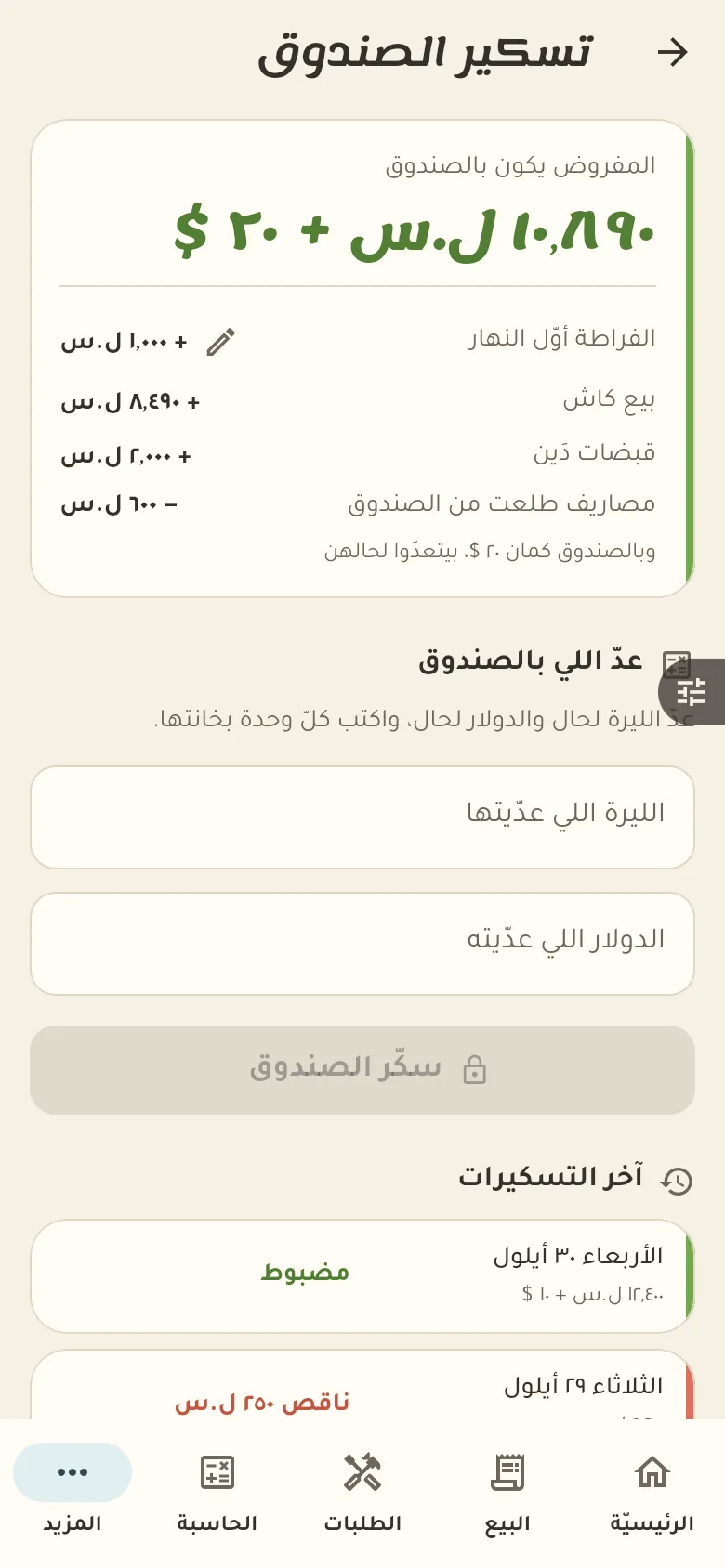
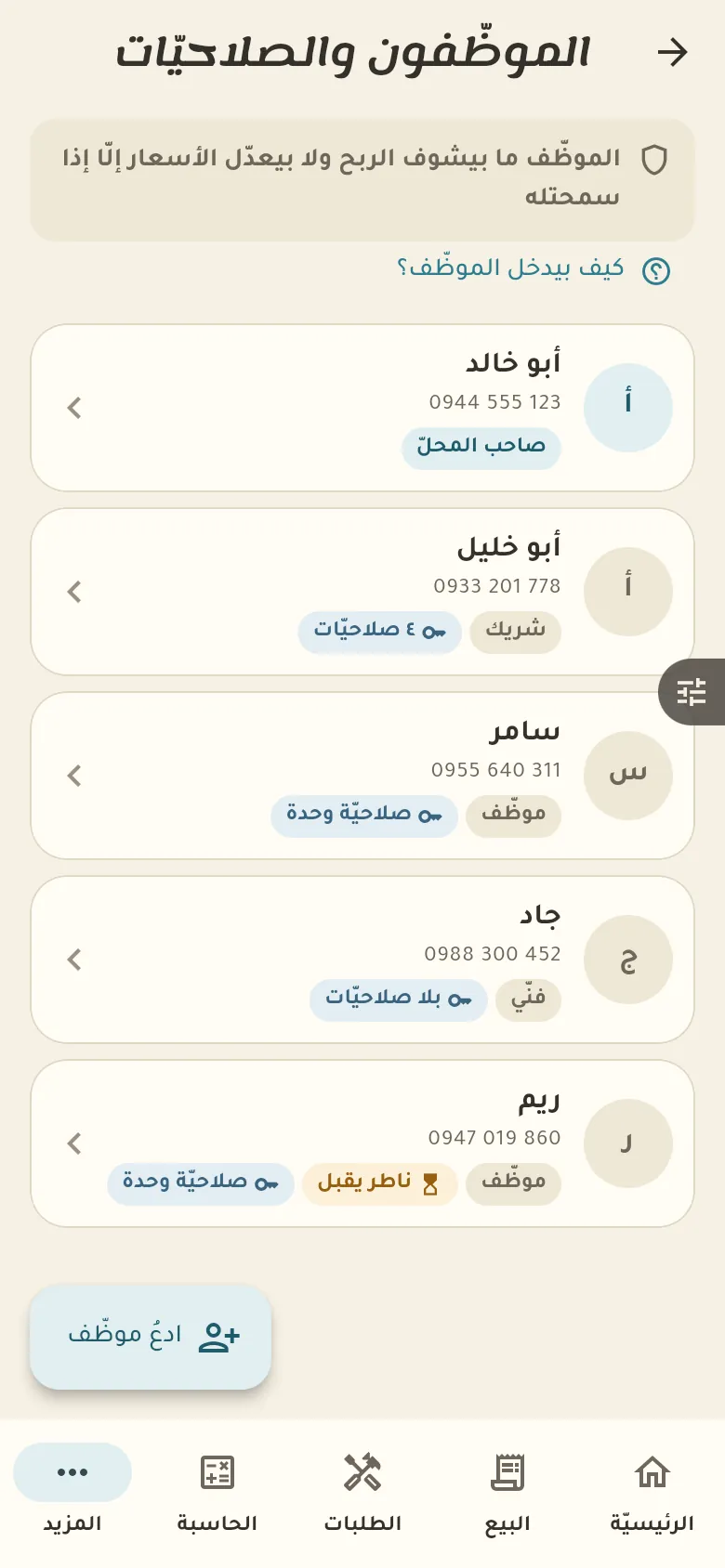
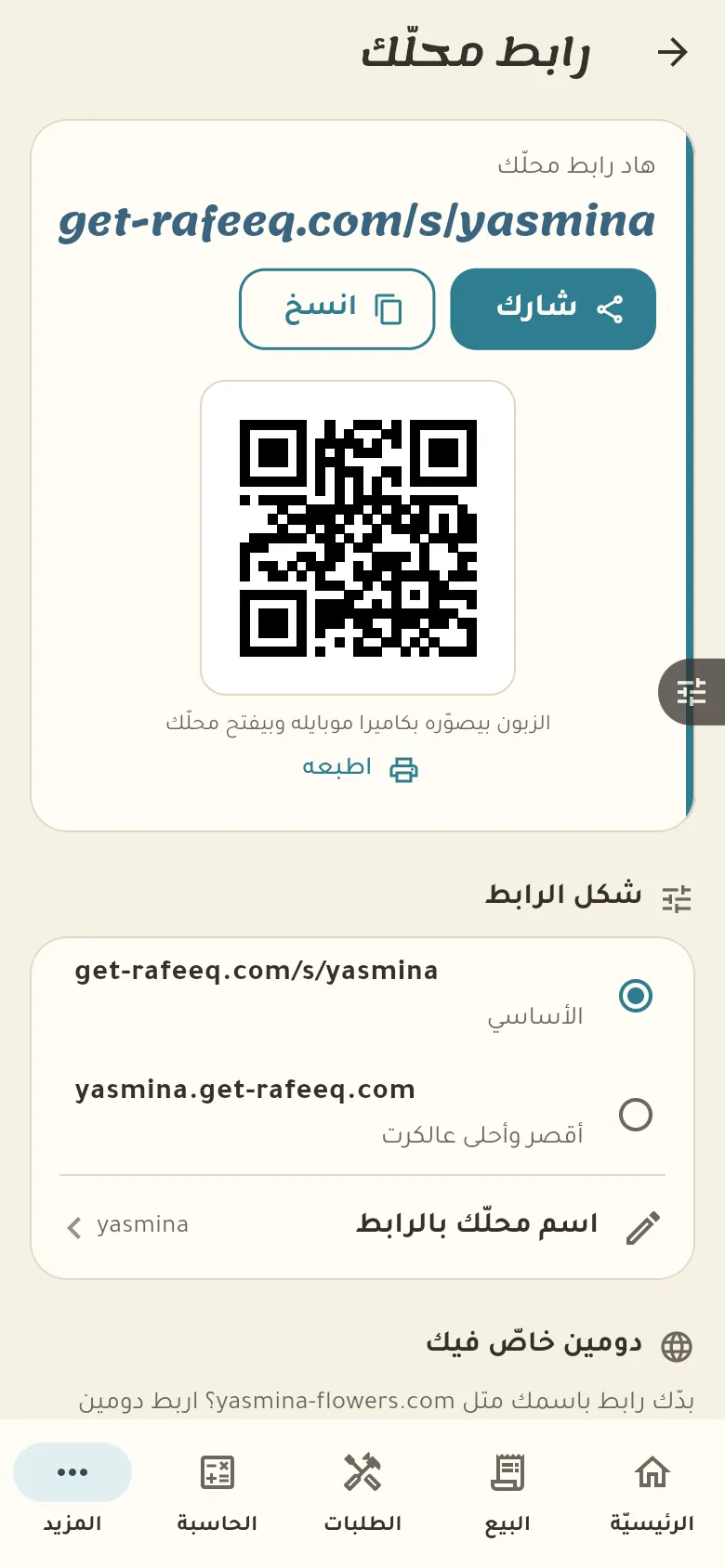
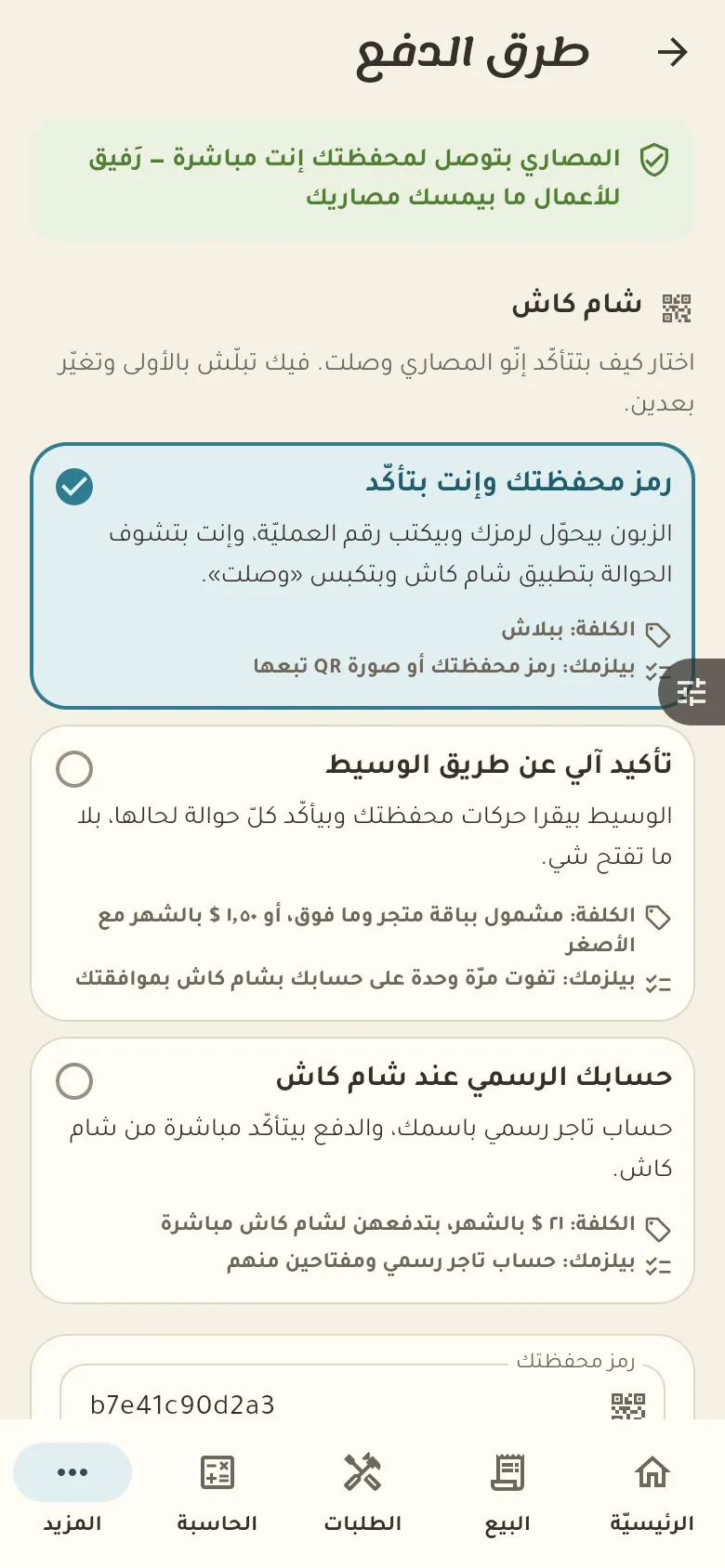
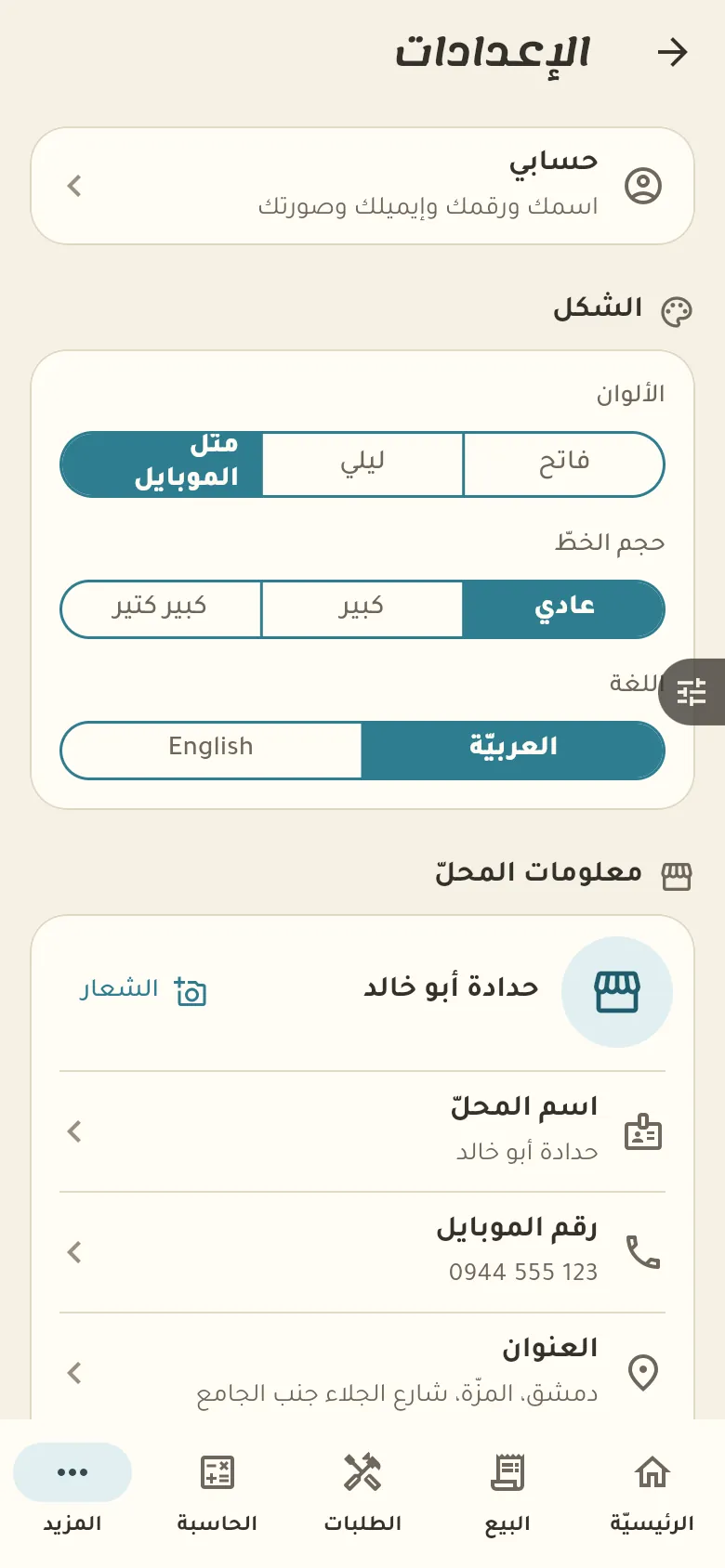
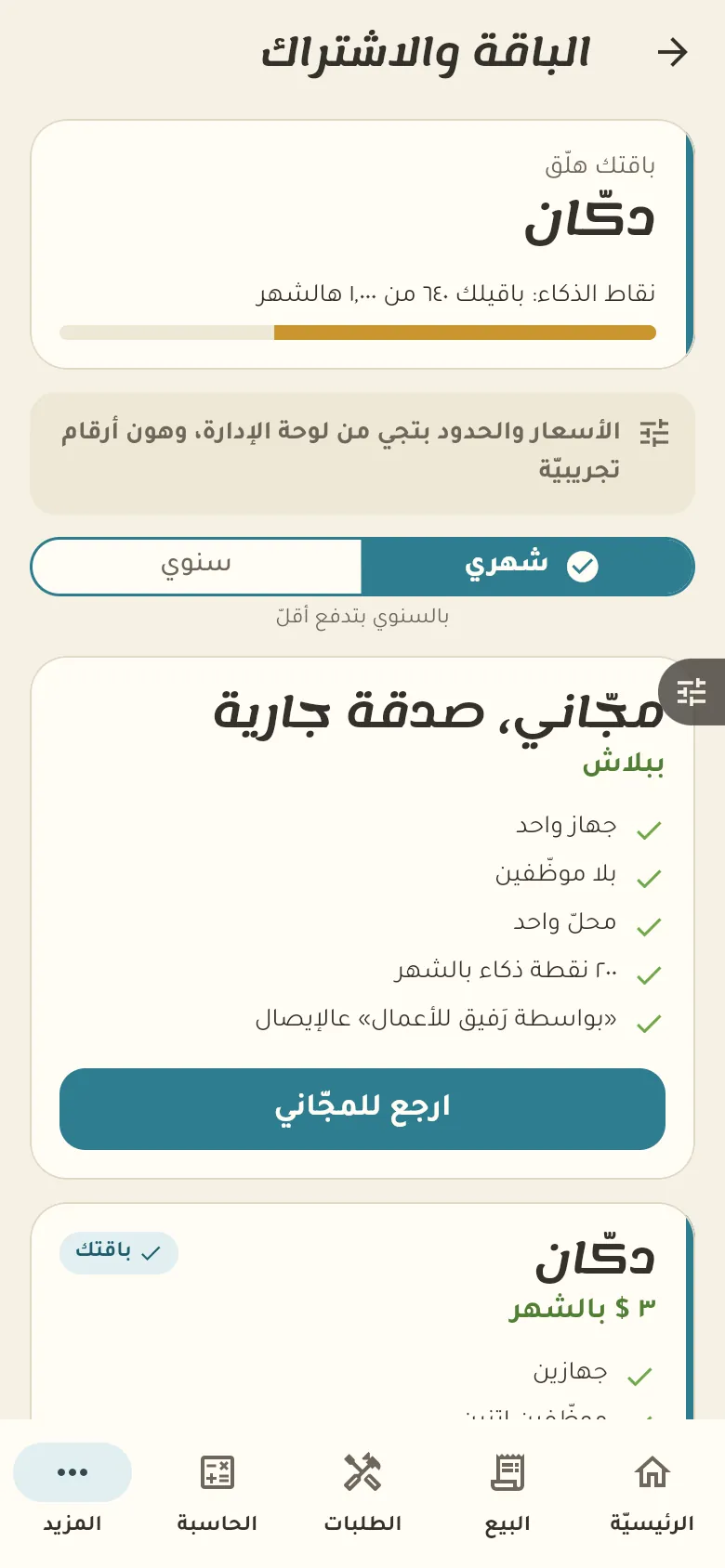
1 Home and the bottom barNew This is your home screen: a summary of your day. The bar at the bottom moves you between the sections of your shop, and «More» at its end opens everything else. 2 Iron: tons and weightNew Iron stock is counted by weight: you buy it by the ton and sell it by the kilo or the bar. Rafeeq shows what's left of each diameter and works out the cost per kilo from your purchase price. 3 Your first itemNew Let's add your first iron item now. Type its kind, diameter, the weight per metre or bar, and the selling price per kilo. 4 Selling by weightNew In «Sales» pick the item and type the number of bars or kilos, and Rafeeq works out the weight and price and deducts from stock. You can sell for cash or on credit. 5 The calculatorNew For fabricated work like doors and windows enter the dimensions and kind of iron, and the calculator works out the iron's weight and cost, then adds labour and profit to reach the customer's price. 6 OrdersNew Each fabrication order has its deposit and stages. In Settings you decide whether making is blocked until the deposit is paid or Rafeeq just warns. You log your workers' days on each order so they go into its cost. 7 Credit and the credit limitNew This is the credit book: who owes how much, and their last movement. The owner sets a limit for each customer; Rafeeq warns you as they near it, and past the limit a credit sale needs approval. 8 The cash drawer and closing itNew Open the drawer in the morning with the change in it, and close it at night by counting what's inside. Rafeeq compares your count to what it should be and shows the difference. 9 Staff and permissionsNew From here you add a staff member by inviting their phone number, and choose what they can see and do. A new staff member has no permissions by default, and you grant what you want. 10 Your shop page and its linkNew Your shop has a web page that customers open from a link. Pick the link name, share it on WhatsApp and your accounts, and customer orders will arrive straight in the app. 11 Payment methodsNew Choose how customers pay on your shop page: ShamCash, cash on delivery, or credit. You decide what's offered, and you confirm every payment before it counts. 12 Backup and devicesNew Your data is saved on our server automatically, so it isn't lost if your phone is. «Sync now» uploads anything pending, and below it you see the devices on your account and can remove an old one. 13 Your plan and voucher codeNew Here is your current plan with its devices, staff and AI points. If you have an activation or discount code and the code box is open for your account, you'll find it lower down on this page; you can upgrade whenever you need. A screenshot taken automatically from the app
On a computer or in the browser If your phone is not at hand, open Rafeeq Business in the browser and sign in with the same number: the same cashier and the same steps.