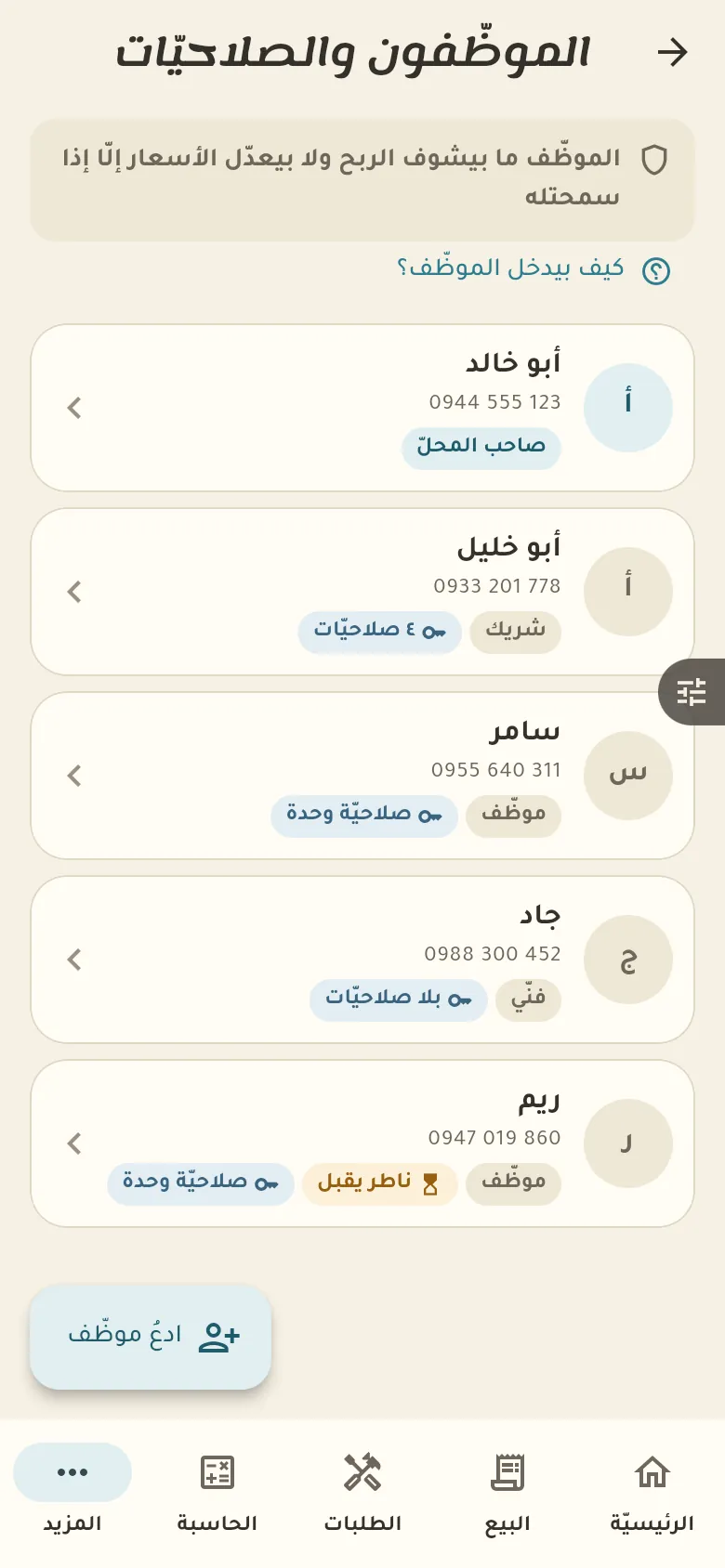
From here you add a staff member by inviting their phone number, and choose what they can see and do. A new staff member has no permissions by default, and you grant what you want.
13 chapters · 1 step
Pick up where you left off:
Step by step
Press any step (or scroll) and the phone shows its screen.
A screenshot taken automatically from the app
Common questions
How do I add a staff member?
From «More → Staff» tap «Add» and enter their phone number. They get an invitation, and when they sign in with that number they join your shop.
How do I control what a staff member sees?
Open the staff member and switch on the permissions you want, like seeing profit, changing prices or closing the drawer. Anyone you don't grant a permission to doesn't see what it covers at all.
How do I remove a staff member?
Open the staff member and tap «Remove». They lose access to the shop immediately, and all their past operations stay in the log under their name.
How do I know who made a sale?
Every sale carries the name of whoever recorded it and when. Open the invoice from the sales log and you'll see «Recorded by: …».
On a computer or in the browserIf your phone is not at hand, open Rafeeq Business in the browser and sign in with the same number: the same cashier and the same steps.